 MC Generator
Minecraft Pixel Art Generator
Turn any image into Minecraft pixel art with our free online generator. Upload an image, choose a Java or Bedrock block palette, set your build size, edit individual blocks, see the live block count, and export your finished design for Minecraft.
Crop ImageOptional
Drag a corner to resize, or drag inside the box to move it.
Upload an image to crop it.
Size (blocks)
Locked to your image's aspect ratio. Unlock to set width and height independently — this will stretch the build to fit.
64 × — blocks
Color Adjustments & DitheringOptional
Adjustments
Search for a Block
This is what the pencil and fill tools paint with. Type a block name to use it, use the eyedropper to pick a color from your image, or use the eraser to make blocks transparent.
No blocks match "".
Upload an image to see your Minecraft pixel art build here.
Replace BlocksOptional
Swap every block of one type for another across the whole build at once.
Live Block Count
0 blocks
Export
Sets the correct file version tag for the schematic exports below and checks your build against that version's world height limit.
Create Minecraft Pixel Art From an Image
Upload a JPG, PNG, GIF, BMP, or WEBP image and turn it into Minecraft pixel art. Choose your build size, preserve the image's aspect ratio, and customize the result before exporting.
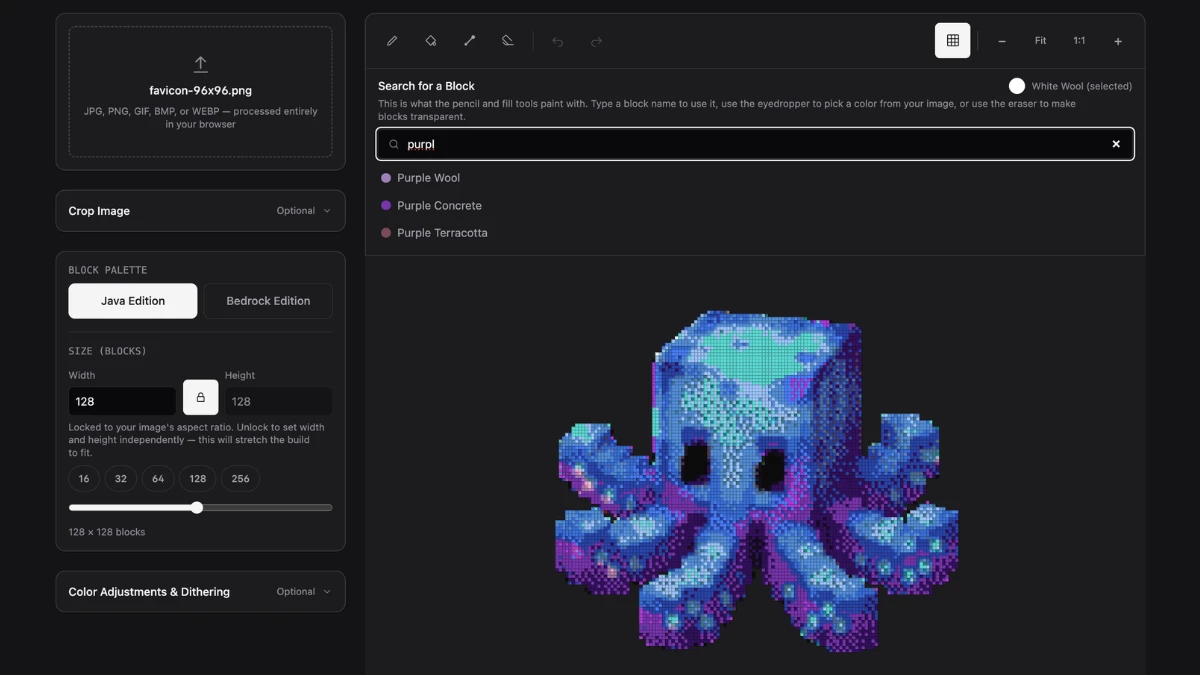
Customize Your Pixel Art
Adjust brightness, saturation, contrast, and dithering to improve the conversion. Choose from Floyd-Steinberg, Atkinson, Ordered (Bayer), or no dithering.
Once generated, edit your design directly with the pencil, bucket fill, eyedropper, and eraser tools. Search for any available block and use it to replace or paint individual areas.
Java & Bedrock Block Palettes
Choose between Java Edition and Bedrock Edition block palettes when creating your design. The available blocks and export formats can vary between editions.
Live Block Count & Block List
See the number of blocks required for your build as you edit. The count updates automatically when you change or replace blocks.
You can also export your materials as a CSV or TXT block list to help plan your build.
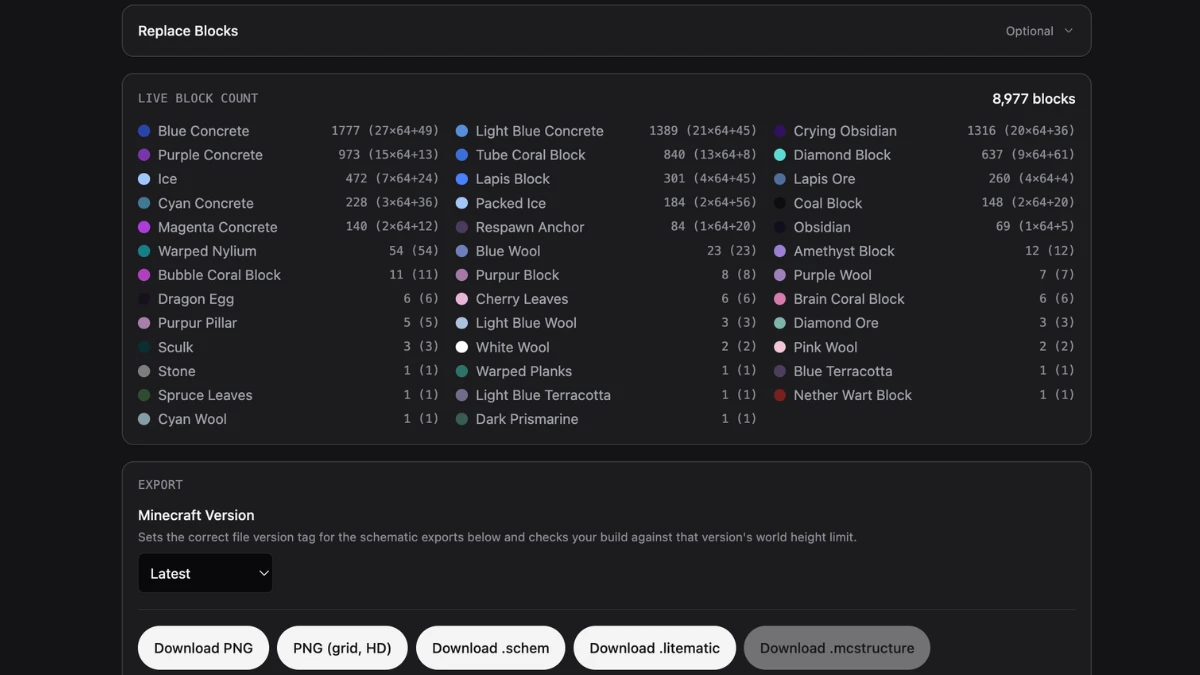
Export Your Minecraft Pixel Art
Download your finished design as:
- PNG
- PNG with grid
.schem.litematic.mcstructure- Block List (CSV)
- Block List (TXT)
Choose the appropriate Minecraft version in the export settings. .schem and .litematic are intended for Java Edition, while .mcstructure is used for Bedrock Edition.
How to Make a Picture in Minecraft
You can make a picture in Minecraft by recreating an image with blocks as pixel art. The easiest approach is to convert your image into a Minecraft block design, then use the resulting grid and block list to build it in your world.
- 1
Choose an image
Upload the picture you want to recreate.
- 2
Convert it to Minecraft pixel art
Use the Minecraft Pixel Art Generator to convert the image into Minecraft blocks.
- 3
Choose your Minecraft edition
Select the Java or Bedrock block palette that matches your game.
- 4
Choose the build size
Set the width and height of your picture. Larger dimensions generally allow more detail.
- 5
Build the picture
Use the generated design and block list to recreate the picture in your Minecraft world.
Frequently Asked Questions
Can I turn an image into Minecraft pixel art?
Yes. Upload a supported image and the generator converts it into a Minecraft block-based design.
Does it work with Minecraft Java and Bedrock?
Yes. You can choose a Java or Bedrock block palette. Export options depend on the Minecraft edition and file format.
Can I see how many blocks I need?
Yes. The live block count updates as you edit your design, and you can download the complete block list.
What image formats are supported?
JPG, PNG, GIF, BMP, and WEBP.
Can I edit the generated pixel art?
Yes. You can paint, fill, erase, pick blocks with the eyedropper, search for blocks, and replace blocks in bulk.
What file formats can I export?
You can export PNG, grid PNG, CSV, TXT, .schem, .litematic, and .mcstructure, depending on the selected workflow.
How do you do pixel art in Minecraft?
Convert an image into a grid of Minecraft blocks that match its colors, then place those blocks in your world in the same layout to recreate the image as a mural or build. Our Pixel Art Generator automates the conversion so you get a ready-to-build design and block list.
How can I convert a Minecraft photo into pixel art?
Upload your photo to the Pixel Art Generator, choose your block palette and Minecraft edition, set your build size, and it automatically converts the photo into a Minecraft block design with a matching block list.
Can I convert real photos to Minecraft?
Yes. Upload any JPG, PNG, GIF, BMP, or WEBP photo and the generator converts it into Minecraft blocks you can build in your world.
How do I upload pixel art to Minecraft?
Export your design as a .schem or .litematic file for Java Edition, or a .mcstructure file for Bedrock Edition, then load it into your world with the matching structure tool or mod.
How much is 1 pixel in Minecraft?
In this generator, each pixel of your build equals one Minecraft block, so a design that's 64 by 64 pixels uses a 64 by 64 grid of blocks.